How to Use Skillmio Public DNS
This tutorial explains how to use Skillmio DNS free services to ensure safer and more efficient browsing
Posted Updated 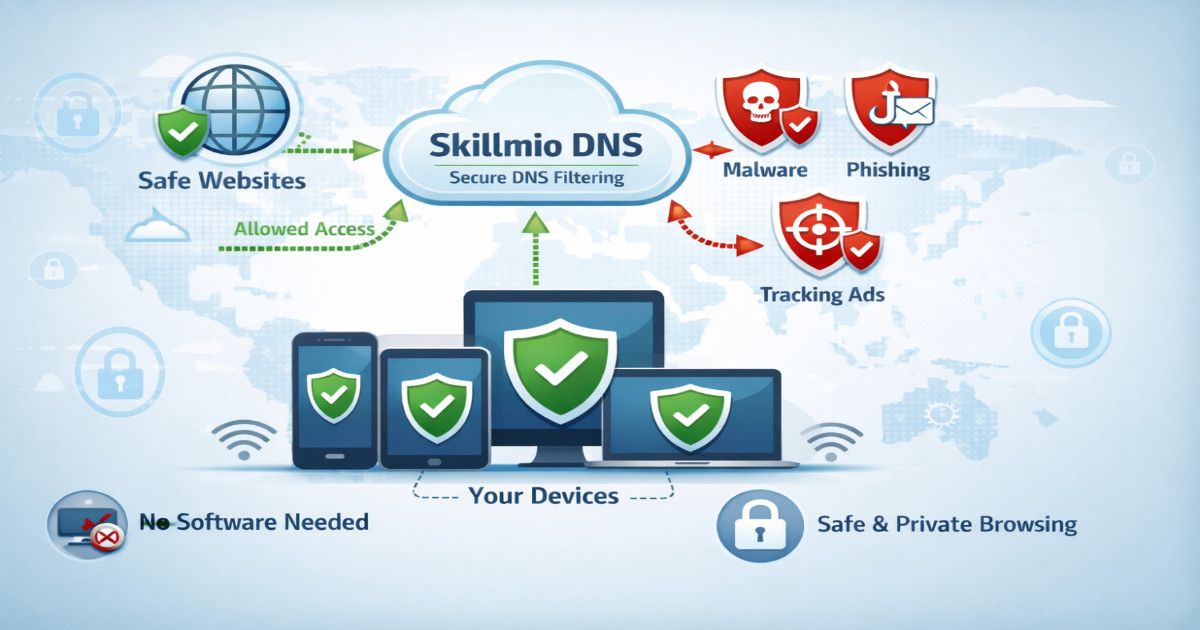
By Mongo Saraiva
1 min read
How to Use Skillmio Public DNS
Skillmio DNS
Skillmio DNS is a free DNS resolution service focused on security and privacy. It filters and blocks malicious domains, phishing attempts, and unwanted content before the connection is established, ensuring safer and more efficient browsing without the need to install software on devices.
Benefits
- Security – Cleaner, faster, and safer browsing anywhere in the world.
- Local Consumption – By using Skillmio DNS, you contribute to strengthening African digital services.
- Collaboration – The more people use and report websites with intrusive ads or unwanted content, the more effective the protection becomes for everyone.
How to Use?
Android Devices
- Go to Settings > Connections > More connection settings
- Tap Private DNS
- Select Private DNS provider hostname
- Enter:
dns.skillmio.net - Tap Save
⏳ Wait a few seconds — if the name appears without error, everything is configured correctly.
To disable, follow the steps until step 3 and, instead of selecting Private DNS provider hostname, choose Off.
iOS Devices
- Download and save the profile file: https://raw.githubusercontent.com/skillmio/CoSec/master/dns-skillmio-unsig.mobileconfig
- Go to the location where you saved the
dns-skillmio-unsig.mobileconfigfile - Tap the file — it will automatically be recognized as a configuration profile
- A message will appear saying “Profile Ready to Install”
- Go to Settings
- Tap Profile Downloaded (at the top of Settings)
- Select Install
- Enter your device passcode if requested
- Confirm by tapping Install again
After installation, Skillmio DNS will be active on the device.
Windows 10/11
- Open Control Panel > Network and Internet > Network and Sharing Center
- Click Change adapter settings
- Right-click the active connection > Properties
- Select Internet Protocol Version 4 (TCP/IPv4) > Properties
- Select Use the following DNS server addresses and enter:
102.213.34.98and196.61.76.76 - Click OK and restart the connection
Linux
- Open the Linux Terminal
- Edit the file:
vi /etc/resolv.conf - Add:
nameserver 102.213.34.98 - Add:
nameserver 196.61.76.76
This post is licensed under CC BY 4.0 by the author.